 Parametric Robot Control
Server
The server is built upon .NET 10 / ASP.NET Core and uses Blazor to display the graphical user interface. The .NET runtime is included in all regular releases; only the developer (ZIP) version requires a separately installed runtime.
Windows: Starting the Server#
On Windows, you can start the server via the Start Menu, where it can be found under the name “Parametric Robot Control”. Alternatively double-click the PRC.Server.exe in the install location, usually %LOCALAPPDATA%/Parametric Robot Control/PRC.Server/.
macOS: Starting the Server#
On macOS, if you installed Parametric Robot Control via the DMG, the PRC.Server app can most likely be found in the Applications section of the Finder.

macOS: Starting the server manually#
Alternatively, on macOS you can start the server by opening a Terminal window of the PRC.Server folder by right-clicking it and selecting “New Terminal at Folder”.
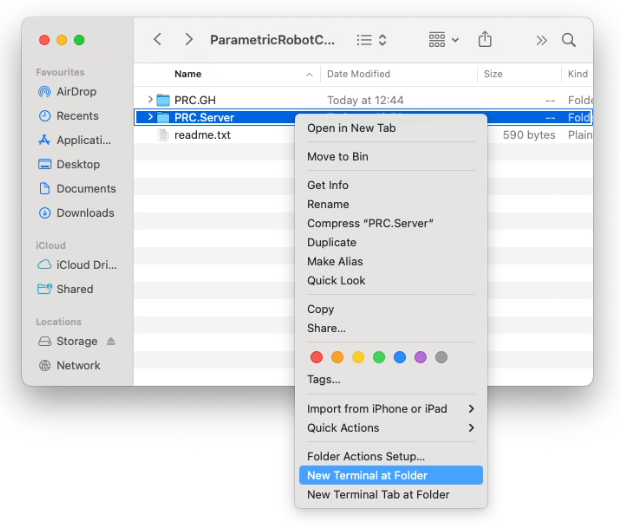
Then enter the following command to run the server:
dotnet PRC.Server.dllIf you get an error message, the .NET 10 runtime might be missing, which includes the dotnet command.
Starting the server: Via Grasshopper#
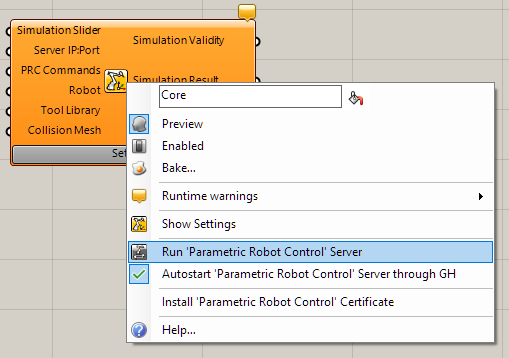
You can also right-click the Core component in Grasshopper. If the PRC.Server.exe is not in the default location, you need to set the path once.

From the on, you can start the server via the right-click menu. On Windows you can enable auto-start, which will start the server once a PRC component has been added to the canvas. It will ensure that only one instance is running.
UI and Console#
When starting the server on Windows or macOS (a Linux build of the desktop shell exists as well), you will be greeted with a window that shows the user interface. It is identical to what you can also access from the browser via https://127.0.0.1:5001. If you close the window, it will also close the PRC.Server. The landing page is the Dashboard: status tiles (connected robots, toolpath issues, uptime / license expiry, version), a per-robot job table with solver progress, a server panel, and a log tail. The 3D visualization has its own page at /visual. A pin button in the top bar keeps the window always on top for the current session.
If the window shows a startup failure instead, note that only one PRC.Server can run at a time – a dedicated message appears when port 5001 is already taken by a second instance or another application.

If you are using the Developer version, you will get to the simplified console UI, but can still access the settings via the browser. The console UI can also be used outside of the Developer version by starting the PRC.Server.exe with the parameter --headless (or its alias --console); --windowed forces the desktop window.
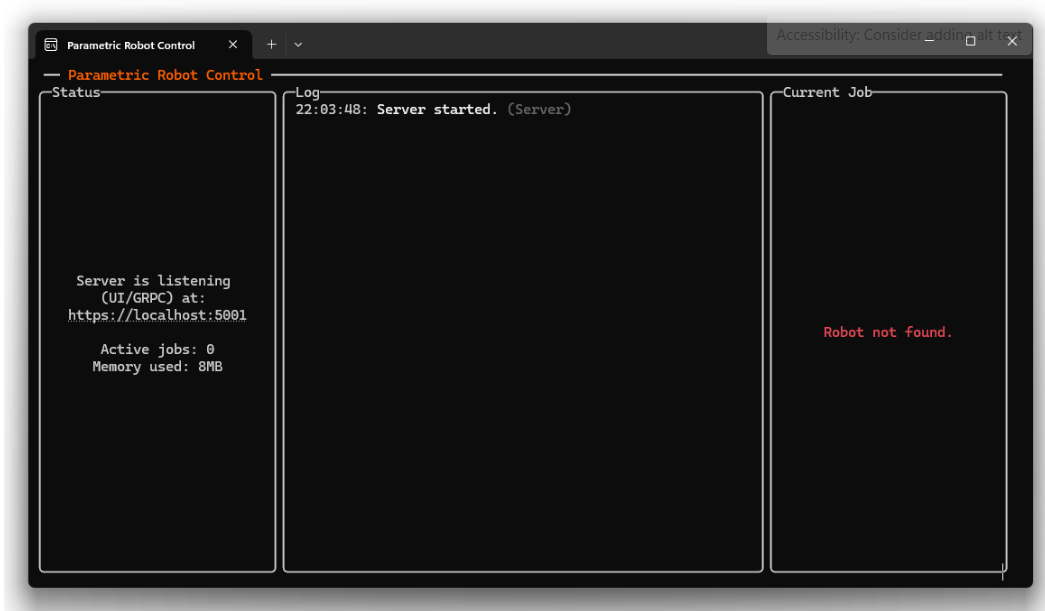
Note that when a client connects, there is no change of the console output. Only once a robot setup is defined, the console shows the previous, received remote procedure calls and provides some general information.
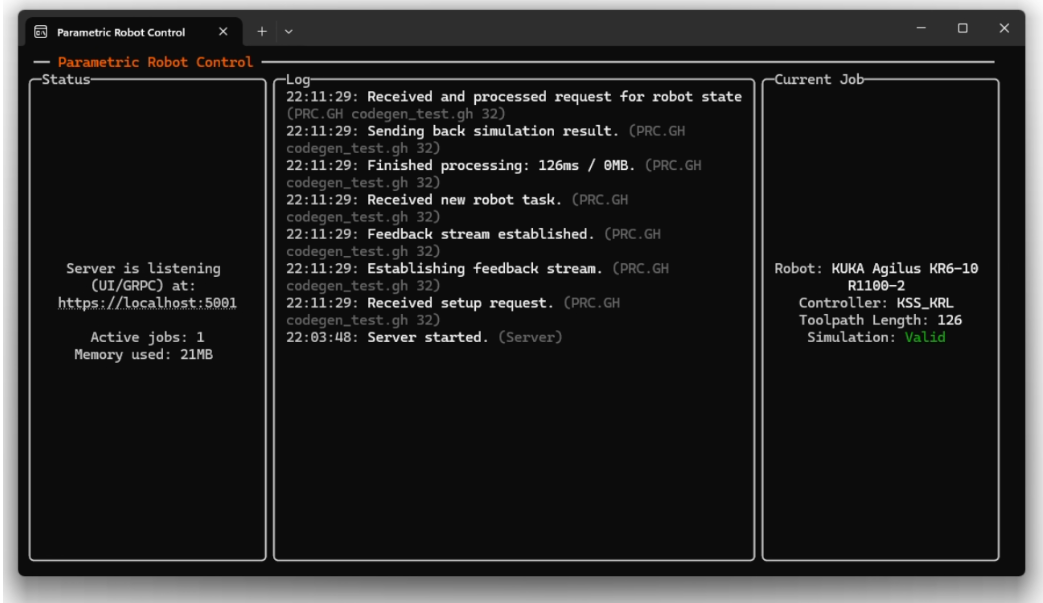
Note the URL of the user interface. The console may also point out that a necessary encryption certificate is missing. By default, the certificate is installed along with the software. However, you may have unticked the option or did not approve the relevant prompt. Refer to the Certificates section.
GUI#
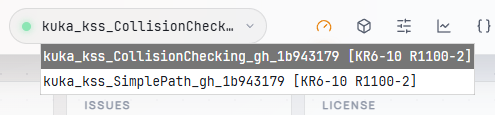
Type the address - default is https://127.0.0.1:5001 - in your browser to open the graphical user interface. You can Crtl-click the link in the Terminal windows. In the dropdown menu, you can switch between different connected robotic setups. The name of each setup is generally chosen by the client software, but can also manually be defined.

The Robot Settings are dynamically generated, so that e.g. the settings are different for a module generating KRL code and a real-time interface to the robot.
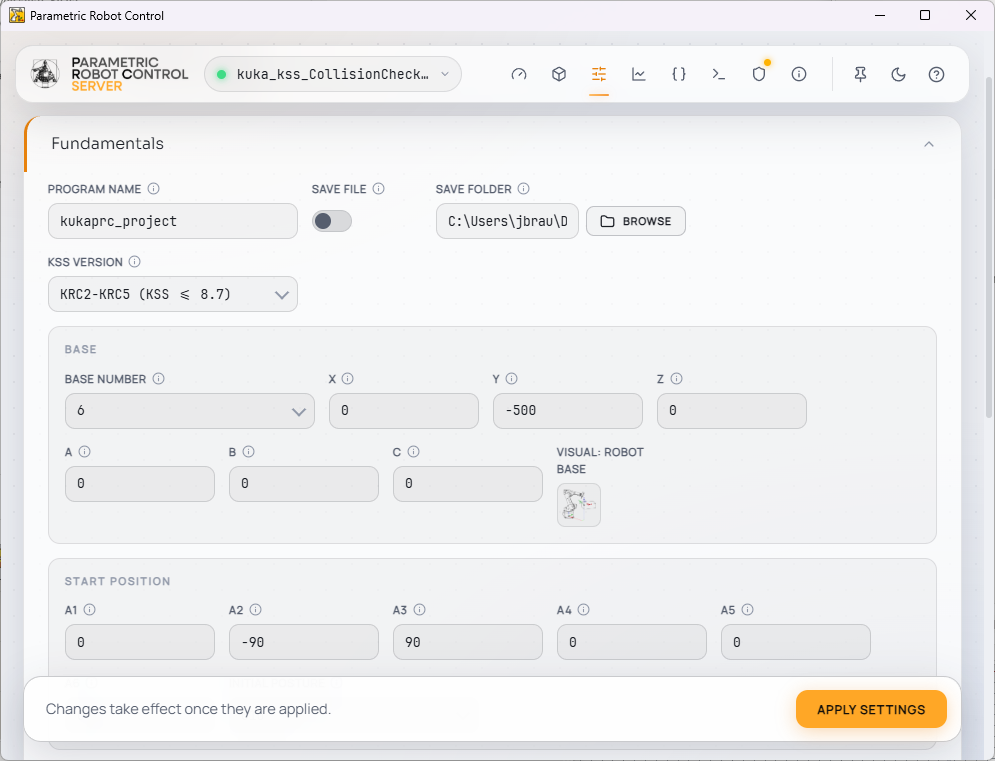
To confirm the settings, press the Apply Settings button either at the bottom of the interface or floating on top.

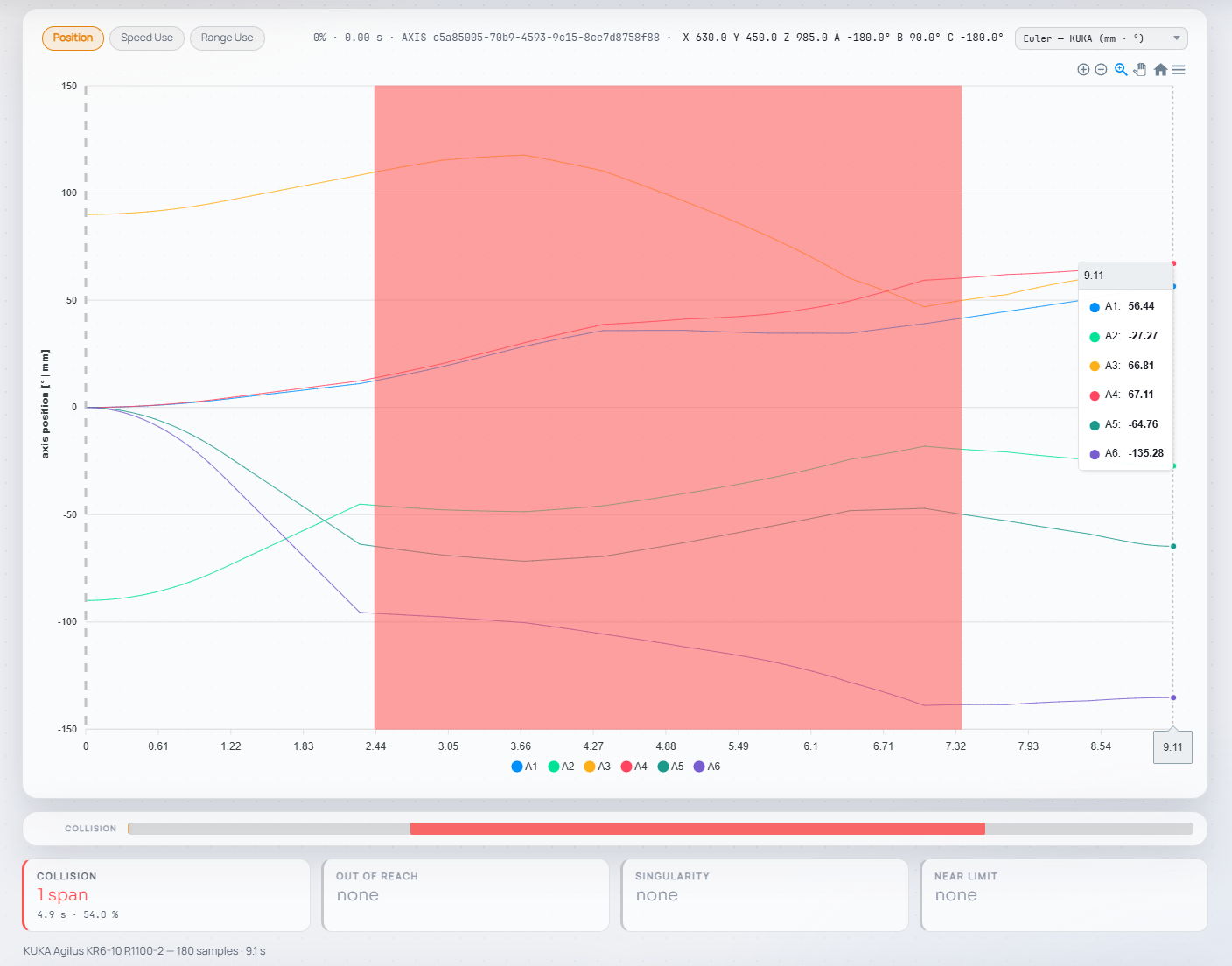
The Analysis view provides an axis graph of the robot's task, with a slider-style position readout, per-command motion types, and values in the units used for code generation.
Docker#
For headless deployments – e.g. running the simulation on a server that clients connect to remotely – the PRC.Server can also run in a Docker container. The container is based on the .NET 10 ASP.NET image and runs the console (terminal-only) build of the server, listening on the usual port 5001. The PRC root certificate is trusted inside the container, so the served certificate chain-validates just like in a local installation. With the provided compose file, docker compose up -d builds and starts the container with the canonical 5001:5001 port mapping, and docker compose down stops it. Contact us if you are interested in a containerized deployment.