 Parametric Robot Control
Installation
CertificatesTo communicate between server and client, Parametric Robot Control needs to have a valid certificate installed. This happens automatically in the Windows installer (unless deselected). If you are using macOS or are experiencing problems, please refer to the Certificates section and watch the video below.
Parametric Robot Control - Installation on macOSOn macOS, the user needs to perform some steps that are done automatically by the installer on Windows. This video supports the documentation at https://prc.robotsinarchitecture.org and guides you through the installation process.youtu.beParametric Robot Control requires the .NET Runtime (≥10). It comes bundled with the Windows and macOS releases, however if you are running the Developer version, NET10 needs to be installed from Download .NET (Linux, macOS, and Windows).
You can download the preview release of Parametric Robot Control from the Download page.
Installation: Windows#
An early video tutorial also showing the installation process is available on the Grasshopper page.
Download the .exe file containing the installer.
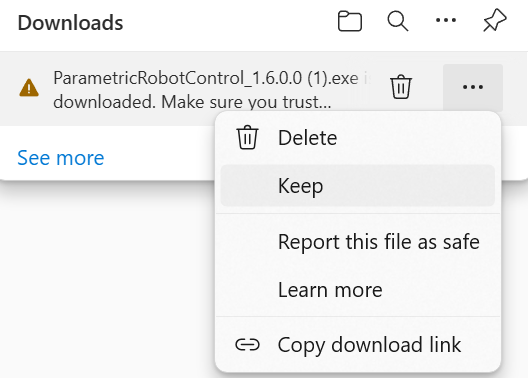
The installer is digitally signed. However, you may still have to manually select that you want to “Keep” the download.
In the installer, accept the prompt that this is experimental software.
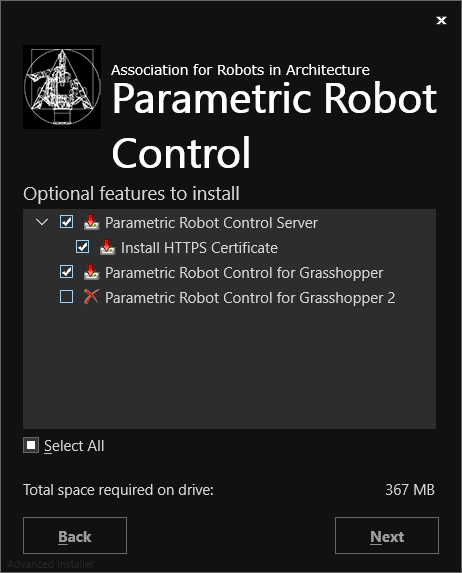
In addition to the Server, you can also install the Grasshopper and Grasshopper 2 plugins. The GH plugin should be automatically placed in the right folder. For Grasshopper 2, it will be saved on your Desktop and you need to install it from the Grasshopper/Plugins/Install prompt. See also here.
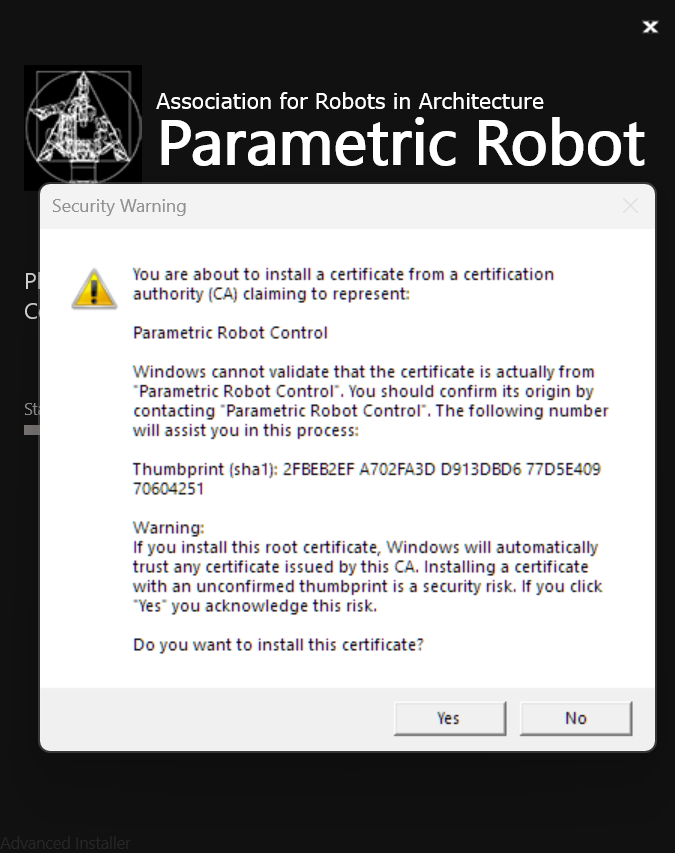
If “Install HTTPS Certificate” is enabled and the certificate has not yet been installed, you will get the prompt below. Confirm the prompt as the certificate is needed for the Server to function. You do not require Administrator rights for that. The certificate installer can also be run from %LOCALAPPDATA%/Parametric Robot Control/PRC.Server/Certificates/PRC.CertInstaller.exe
You can now start the server from the Start Menu and other integrations from the respective apps.
Installation: macOS#
The installation process on macOS is significantly more “manual” than on Windows. The main challenge lies in the encryption certificates that need to be installed. On macOS you may need to repeat the certificate installation at least every 2 years, as the maximum duration is capped. This is a safety consideration that does not apply to Windows where the certificate has got a duration of 30 years.
On macOS, download the DMG file provided in the Download section. Double-click the file.
The video below guides you through the installation process on macOS.
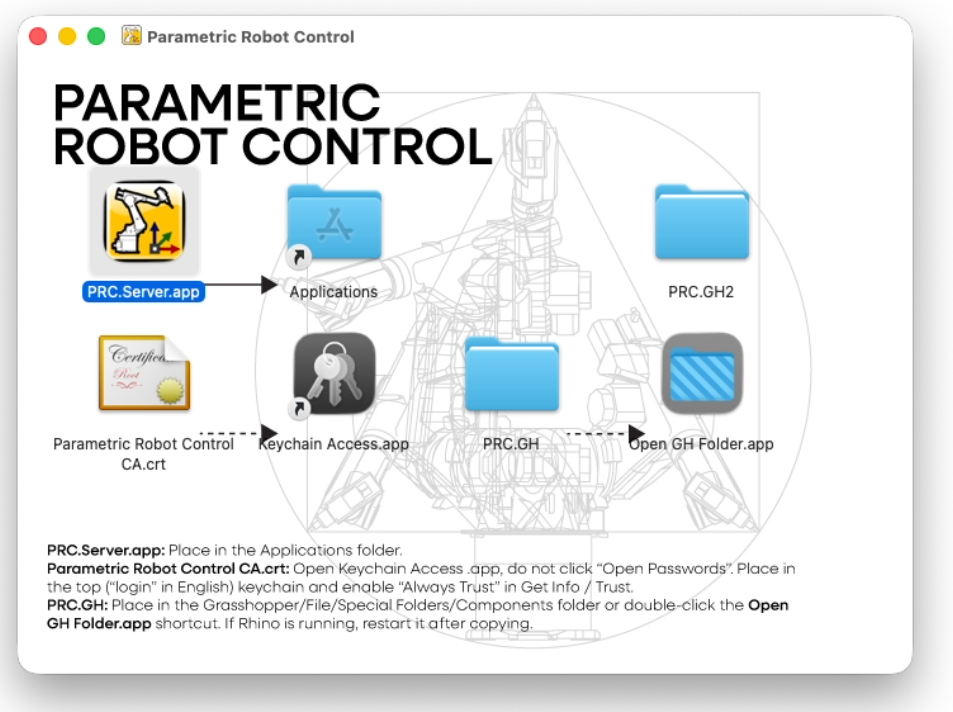
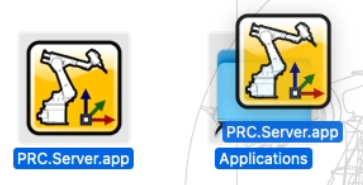
To install the server, drag the PRC.Server app into the Applications folder.
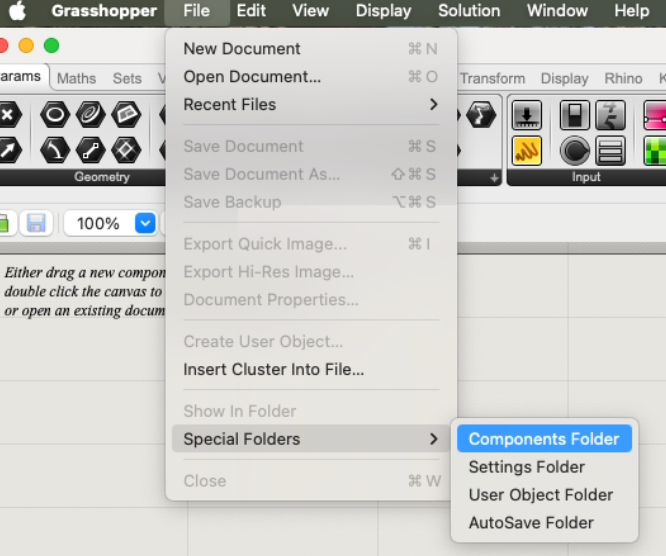
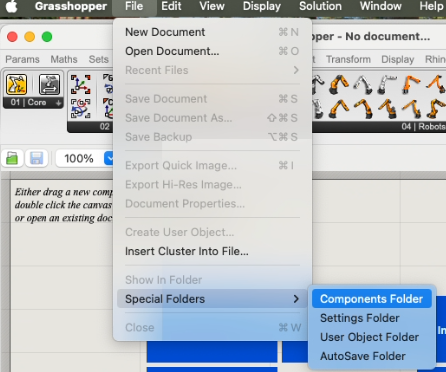
To install PRC.GH for Grasshopper, click the “Open GH Folder.app” shortcut or go into Grasshopper and select File/Special Folder/Components Folder.
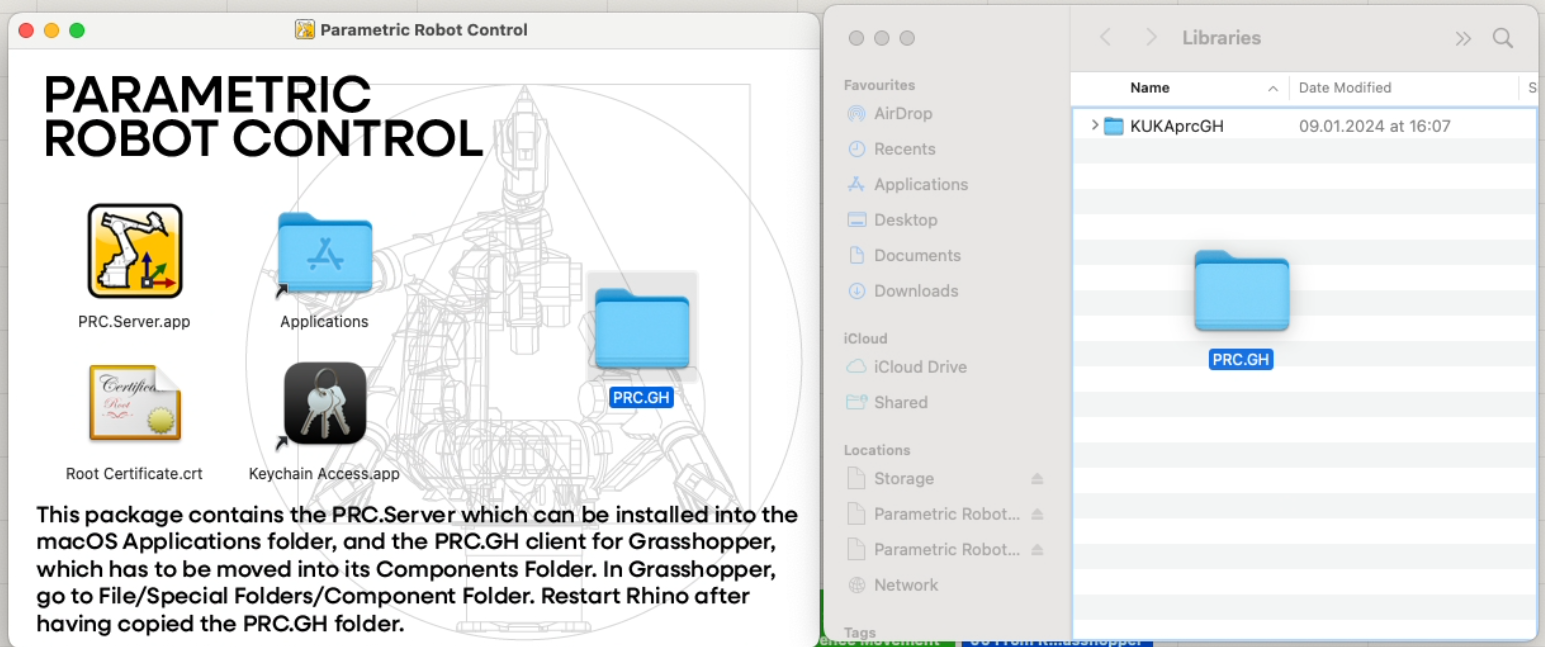
Drag and drop the folder PRC.GH into that folder.
Finally, the Root Certificate needs to be installed. On current versions, the PRC.Server app checks for a trusted certificate on startup and offers to install it for you – the macOS password dialog is the only prompt. Alternatively, install it manually: double-click the link to the Keychain Access app. Confirm that you want to open that app and enter your password.
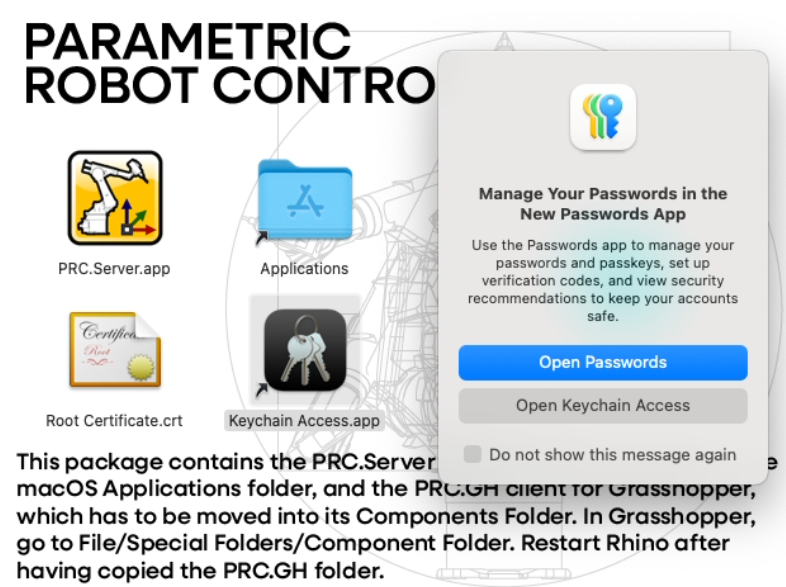
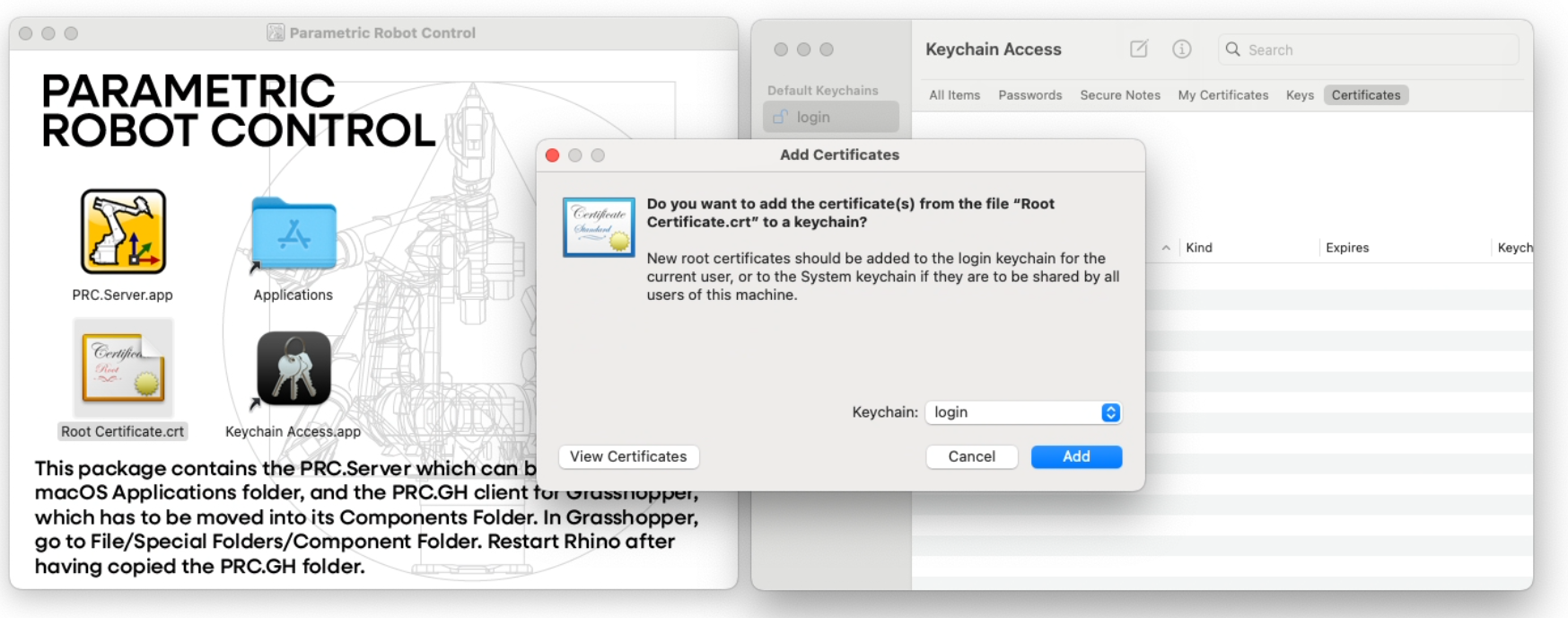
Drag and drop the Root Certificate.crt file from the window into the Certificates tab that should be open on start. Select “Add” when prompted.
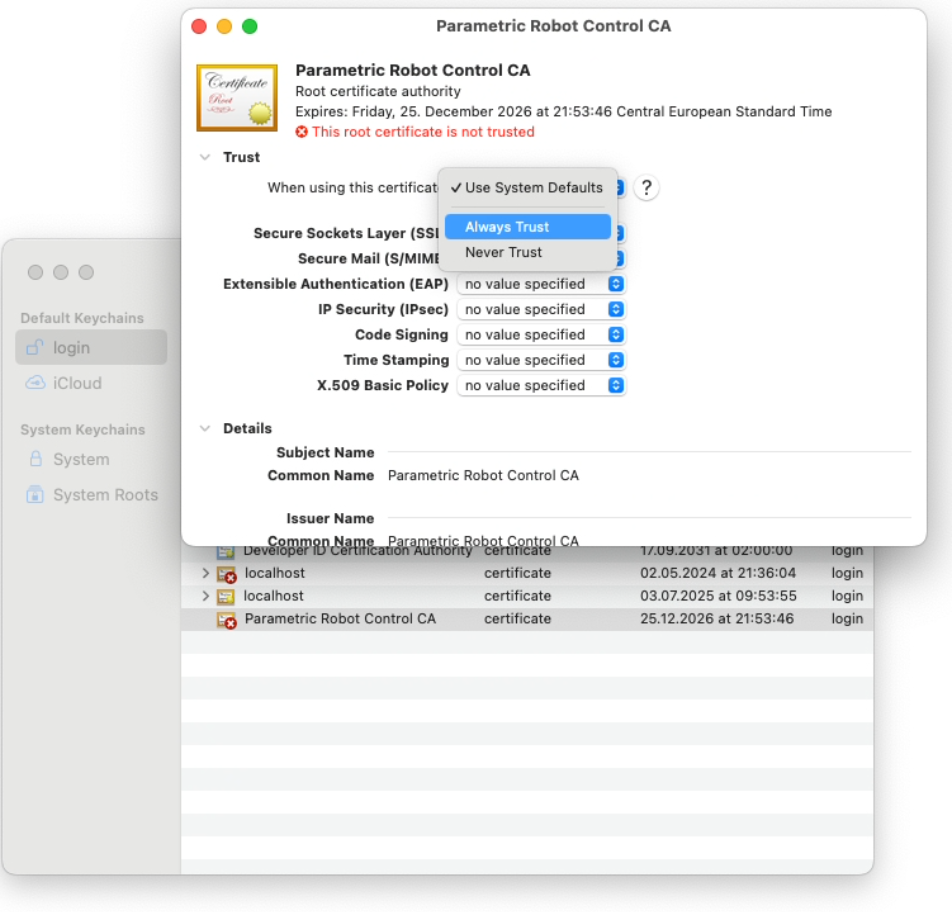
It may take a short while for all the certificates to show up. The new certificate will have a red X signifying that it is not trusted. Double-click it, expand the “Trust” section and select “Always Trust”. PRC should now be able to securely communicate between server and client.
Manual Installation: macOS#
The manual installation is not recommended, but provided here primarily for developers. This allows PRC to also run on older, Intel-based macOS machines.
Unzip the Developer version file provided in the Download section. It should contain a readme.txt and three folders: PRC.Server and PRC.GH and PRC.GH2.
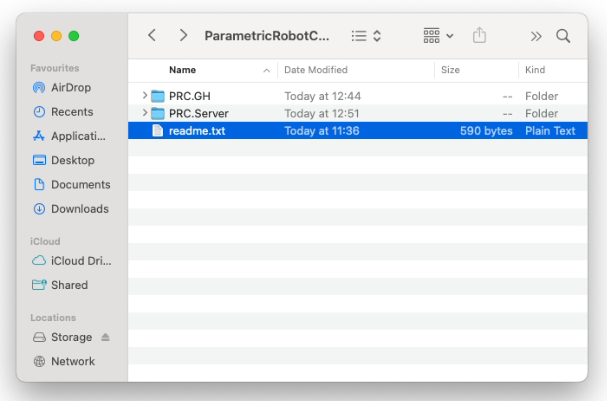
The PRC.GH folder should be placed within the Grasshopper component library. Go into Rhino 8, enter the Grasshopper command, then select File/Special Folders/Component Folder. Copy the PRC.GH folder into that folder.
You will need to restart Rhino for the components to show up. If you are replacing an earlier version, you may need to close Rhino before you are able to overwrite the older files as they may still be in use.
The PRC.Server folder can be placed anywhere on your device. Open the Certificates subfolder in a Terminal in that folder and enter the following command to install the certificate.
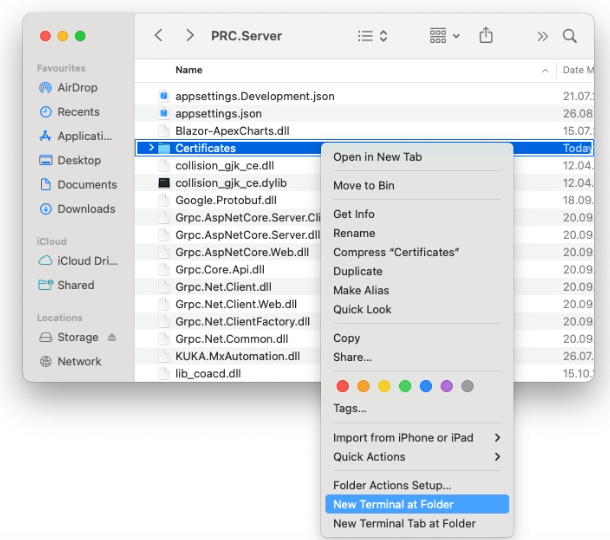
security add-trusted-cert -r trustRoot -k ~/Library/Keychains/login.keychain-db ./PRCRootCertificate.crtNote that you need to enter your password for that. See Certificates for more details why this is necessary and alternative ways of trusting that certificate.
You can start the server by opening a Terminal window of the PRC.Server folder by right-clicking it and selecting “New Terminal at Folder”.
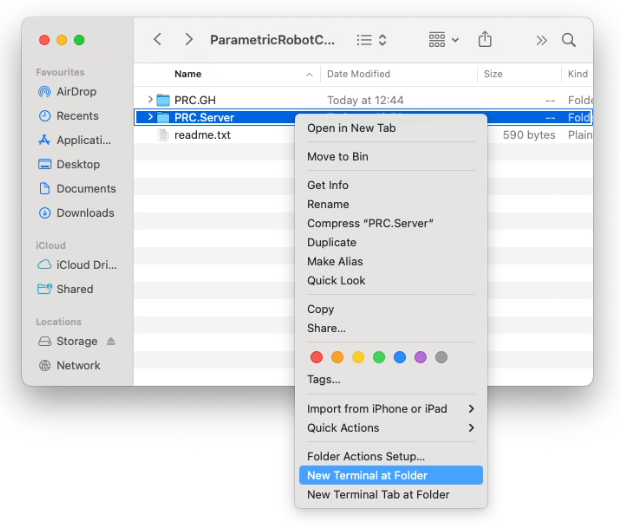
Then enter the following command to run the server:
dotnet PRC.Server.dllUnlike the normal installation, running the server via dotnet will show the terminal-interface with some feedback for troubleshooting. You need to have the .NET runtime for macOS installed, otherwise the dotnet command will not work.